
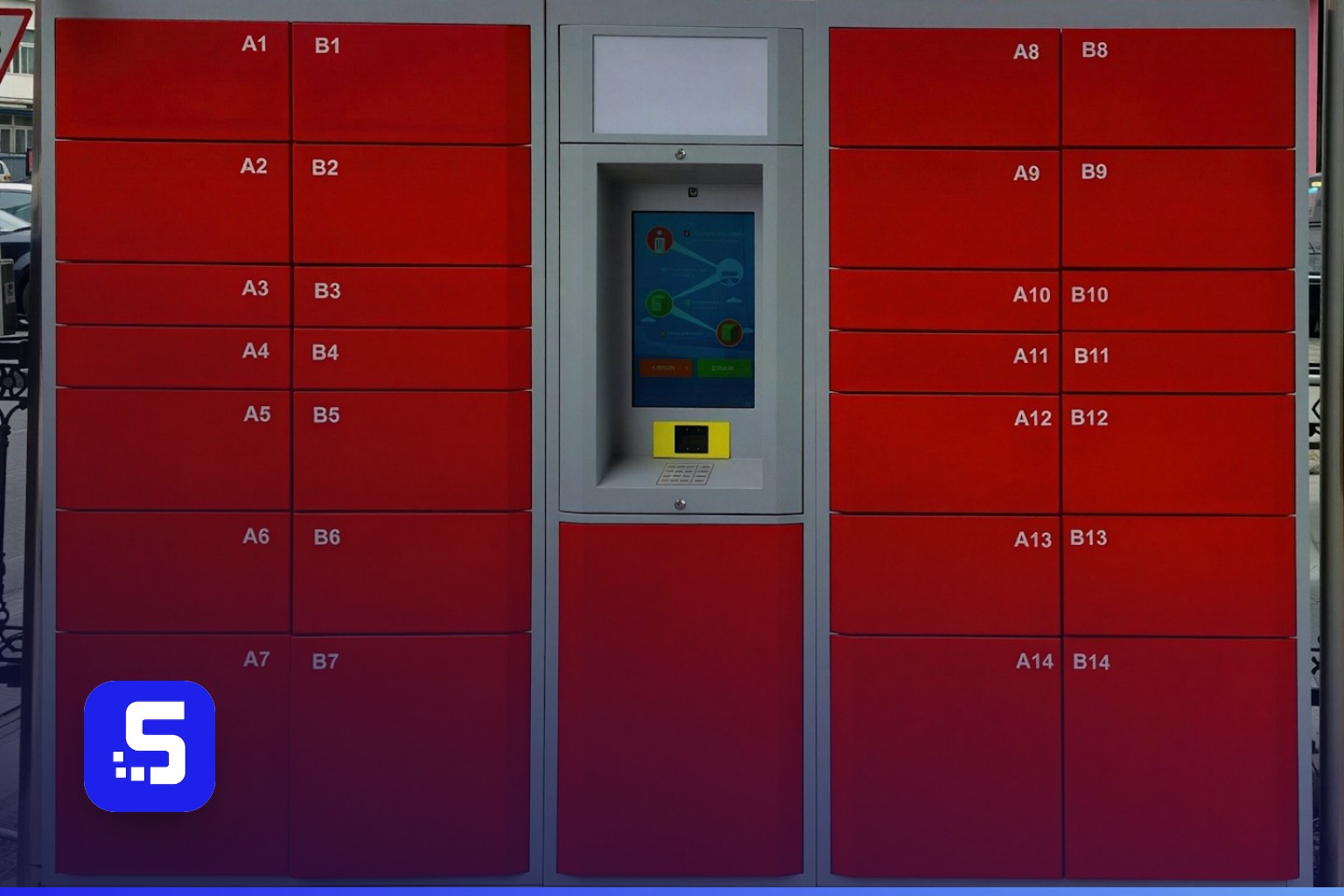
Most European Shopify stores that ship to pickup points know the routine. A customer picks a parcel locker, somebody in the warehouse has to notice it, the label has to go to the right carrier, and a customer who forgot to choose a point needs a nudge. Cash on delivery adds its own loop: the parcel is delivered, the carrier collects the money, and someone has to tell accounting that the order is finally paid.
Shopify Flow can take over much of that work, as long as it knows when these things happen. Out of the box, Flow knows when an order is created or paid. It does not know when a customer selects a pickup point after checkout, or when a COD parcel was delivered and paid. ShipDock now gives Flow exactly these moments: three triggers and one action built for pickup point delivery and cash on delivery.
This guide explains what each trigger and the action do, which data they pass to your workflow, how to set them up step by step, and six workflows you can copy today.
What is Shopify Flow?
Shopify Flow is Shopify's free automation app. Every workflow has three parts:
- Trigger: the event that starts the workflow, for example "Order created" or ShipDock's "Pickup point selected".
- Condition: an optional check, for example "the shipping method contains Parcel locker" or "the order total is over 100 EUR".
- Action: what happens next, for example add an order tag, send an internal email, update a metafield, or run an action of another app.
Apps can add their own triggers and actions to Flow. That is how ShipDock connects pickup points and COD to everything else in your store.
What ShipDock adds to Shopify Flow
In Flow, ShipDock's triggers and action are listed under the app name ShipD Delivery. There is nothing to switch on in ShipDock: once the app is installed, they are available in Flow.
Trigger: Pickup point selected
Starts every time ShipDock saves a pickup point or parcel locker to an order, wherever it was chosen:
- by the customer in checkout (on Shopify Plus),
- by the customer on the Thank you page or the Order status page, as a first choice or a later change,
- by you in the ShipDock app,
- with the order itself, for example when the customer chose one of the nearest pickup points offered as a shipping rate.
Your workflow gets the whole Shopify order plus the pickup point details: pickup point ID, name, carrier code and carrier name, the full address and its parts (street, city, region, postal code, country code), and where the point was selected (checkout, thank_you, order_status or admin). For points of Packeta partner carriers, the Packeta carrier ID is included too.
If the customer changes the point later, the trigger starts again with the new point. Home delivery orders never start it.
Trigger: Pickup point removed
Starts when a pickup point is removed from an order in the ShipDock app and the order goes back to delivery to the customer's address. It passes the details of the removed point: ID, name, carrier and address. Swapping one point for another does not start it; that is a new "Pickup point selected".
Trigger: COD marked as paid
ShipDock can mark cash on delivery orders as paid in Shopify once the carrier reports the parcel as delivered. The trigger "COD marked as paid" starts right after that happens and passes the tracking number, the carrier, the COD amount and currency, the carrier's status code and the time the order was marked as paid.
It follows the automatic marking, so it works with the carriers that report COD delivery to ShipDock and on the Full plan, where automatic marking is available. Marking an order as paid by hand does not start it.
Action: Send pickup point reminder
When a customer picks pickup point delivery but no specific point, ShipDock sends a reminder email about 5 minutes after the order. The new Flow action sends the same email at the moment your workflow decides. You can wait two hours, remind only paid orders, or send a second reminder the next day.
The action has two fields: the order, and an optional "Minimum hours since the last reminder" that skips the email if ShipDock already sent one within that time. The email goes out only when:
- the reminder email is set up in ShipDock under Settings, Notifications (sender name, reply-to address, subject and message),
- the order still has no pickup point,
- the order has a customer email.
The switch "Enable email reminder" in ShipDock can stay off. It controls only the automatic reminder, so Flow can be your only sender. When Flow sends the reminder, the pending automatic reminder for that order is cancelled, so customers never get both by accident.
Tip: add a condition on the shipping method if you want the reminder only for some pickup point rates, for example one carrier or one country.
How to set it up, step by step
- Install ShipDock and Shopify Flow. Both are in the Shopify App Store. Flow is free.
- Set up pickup point delivery in ShipDock. Connect your carriers and add the pickup point widget, so customers can choose a point in checkout or after the order.
- Open Flow and create a workflow. Click Create workflow, then Select a trigger, and search for ShipD Delivery.
- Pick a trigger. Pickup point selected, Pickup point removed or COD marked as paid. For the reminder action, start with Shopify's Order created trigger instead.
- Add conditions. Choose values from the trigger's variable list, for example the carrier code or the country code of the point.
- Add actions. Use the variables in texts as Liquid, for example
{{ pickupPointName }},{{ address }}or{{ providerName }}. - Turn the workflow on and check the first runs in Flow.
Six workflows you can copy
1. Tag orders by pickup point carrier
Trigger: Pickup point selected. Action: Add order tags with pickup-{{ provider }}. Your team can then filter orders in the Shopify admin by carrier and pack all parcel locker orders of one carrier together.
2. Tell the warehouse about late changes
Trigger: Pickup point selected. Condition: where it was selected is order_status or thank_you. Action: Send internal email "Order {{ order.name }} now goes to {{ pickupPointName }}, {{ address }}". Useful when orders are packed quickly and the customer changes the point after the order.
3. Catch a removed pickup point
Trigger: Pickup point removed. Actions: Remove order tags pickup-{{ provider }} and Send internal email "Pickup point removed from {{ order.name }}, ship to the customer's address."
4. Save the pickup point to a metafield
Trigger: Pickup point selected. Action: Update order metafield with {{ pickupPointName }}, {{ address }}. Your theme, invoices or reporting app can then show the point without extra setup.
5. Report collected cash on delivery to accounting
Trigger: COD marked as paid. Actions: Add order tags cod-paid and Send internal email "COD for {{ order.name }} collected: {{ codAmount }} {{ codCurrency }} ({{ providerName }}, {{ trackingNumber }})." Accounting sees every collected amount the day it is confirmed, without exporting carrier reports.
6. Send the pickup point reminder on your own timing
Trigger: Order created. Condition: the shipping line title contains the name of your pickup point rate. Then Wait 2 hours and run Send pickup point reminder. For a second reminder, add Wait 24 hours and run the action again with "Minimum hours since the last reminder" set to 20. If Flow should be the only sender, turn off "Enable email reminder" in ShipDock.
Which carriers work with the triggers
Pickup point selected and Pickup point removed work with every carrier whose pickup points or parcel lockers ShipDock offers to your customers, for example:
- Packeta (Z-BOX and pickup points, plus Packeta partner networks across Europe)
- PPL pickup points
- DPD Pickup points
- GLS ParcelShops
- Balíkovna
- InPost and Orlen Paczka in Poland
- Foxpost and Magyar Posta in Hungary
- BoxNow, Econt, Omniva, PostNord and others
COD marked as paid works with the carriers for which ShipDock marks COD orders as paid automatically: Packeta, PPL, DPD CZ, DPD SK, DPD HR and SI, GLS (myGLS), BoxNow, Česká pošta and Balíkovna.
Frequently asked questions
Does it cost anything?
Shopify Flow is free. ShipDock's triggers and action are available on every paid ShipDock plan (Lite and higher). COD marked as paid also needs the automatic marking of COD orders as paid, which is on the Full plan.
Where do I find the triggers in Flow?
Search for ShipD Delivery when you select a trigger or an action. That is the name of the ShipDock app in Shopify.
What happens if a workflow fails?
Nothing breaks in your store. The pickup point is saved, the order is marked as paid and the order continues as usual. Flow shows the run and its error, so you can fix the workflow.
Can I still use the order tags?
Yes. ShipDock still tags orders, for example packeta_unselected or packeta_selected, and you can use the tags in Flow conditions together with the triggers.
Will customers get two reminders?
Not by accident. When Flow sends the reminder, the pending automatic one for that order is cancelled. If you want both, use "Minimum hours since the last reminder" to keep a gap between them.
Can I send the reminder only for some shipping methods?
Yes. Add a condition on the shipping line title before the action, for example to remind only customers who chose parcel lockers of one carrier.
Start automating
Pickup points and cash on delivery create small tasks on every order: who changed the point, which carrier, was the money collected. With ShipDock's Flow triggers and the reminder action, these tasks run on their own and your team only steps in when something needs a person.
Install ShipDock from the Shopify App Store and build your first workflow today. Need help? Visit our help center.